From Dumpster to Digital Display: Resurrecting Old Tech
Hey you, Windows 7 laptop, what are you doing over there at the back of the drawer? Come out here and do some useful work!
Burwood Neighbourhood House, the community centre where I work, was invited to have an exhibition stall at the City of Whitehorse Positive Ageing Forum. What a great opportunity to try and cobble together a digital display from the rescued tech we have at Burwood Linux Repair Cafe.
Using Old Tech to Display Photos
In the chase for the latest thing, technology becomes obsolete and gets replaced faster and faster. Nowadays, a 3–5-year-old computer is considered an “old computer” and is recommended for replacement. This, of course, generates mountains of e-waste.
Some of this e-waste is actually still perfectly useful technology. With laptops, most often you just need to add Linux to make them useful again. With TVs, while smarter and smarter smart TVs come around every year, those relegated to e-waste can still function perfectly well as simple digital displays. The internal software (if present at all) of an old TV might no longer be the smartest of the smart, but most still have a full-size HDMI input at the back where you can plug in laptops, gaming consoles, security systems—the list goes on.
In our case, we will focus on setting up a digital display with a laptop for an exhibition stall.
The Hardware
There are two hardware components to this simple setup: a TV and a laptop.
The TV: 2007 Panasonic Viera 32”
I have nothing much to say about the TV we chose, other than that it was rescued from the kerb and, most importantly, had an HDMI input. Older TVs will have VGA or RCA composite video inputs, but HDMI is best for modern interoperability (we will see why later in this article).
The Laptop: 2011 HP Pavilion dm1
At Burwood Linux Repair Cafe we had several dumpster laptops vying for the job, but I chose this HP for three reasons:
Form factor: As we would only be using the laptop for the sole purpose of displaying images (i.e. not to check Facebook or edit spreadsheets), it made sense to deploy the most compact computer in the Burwood Linux Repair Cafe arsenal. This 11.6” netbook was the smallest laptop we had.
Full-size HDMI: For displaying to an HDMI TV, it is easiest if your laptop has a full-size HDMI port. That way, you can easily connect the two with a generic HDMI cable. When looking for a dumpster laptop for use with a TV, be sure to steer clear of USB-C video out, DVI, mini-HDMI or DisplayPort. These require you to buy an adaptor. Full-size HDMI is the best!
Age: I tried to push the envelope and choose the oldest computer fit for the job. Because what would be the point of getting a modern laptop to do the job? After all, we want to show off the capabilities of dumpster laptops. So I chose the dumpsterest of the dumpster laptops: this HP dm1 from 2011.
Setting It Up
OS: MX Linux
I chose to install MX Linux because it is much lighter than Linux Mint (the preferred distribution of the Repair Cafe headquarters over in Amsterdam). On top of that, I chose the lightest flavour of MX Linux, Fluxbox. It turned out to be accidentally a good choice because the Fluxbox version came with a hidden gem: feh.
Display Utility: feh
There are a myriad of options available when it comes to displaying a slideshow of images, but I wanted the most minimalist option. I found feh, a command-line utility that simply displays image files contained in a given folder (looking recursively through subfolders if needed).
Lucky for us, feh came pre-installed with MX Linux Fluxbox. Once MX Linux was installed, I simply copied the images to be displayed into a folder. Then, from the command line, I navigated to that folder and ran the feh command with the following flags:
feh -F -. -B black -D 7 --auto-zoom -r -z
| Flag | Effect |
|---|---|
-F |
Fills the screen |
-. |
Scales down if image has more pixels than the display |
-B black |
Gives it a black background |
-D 7 |
Sets a delay of 7 seconds before advancing |
--auto-zoom |
Scales up if image has less pixels than the display |
-r |
Recursively looks through sub-folders |
-z |
Randomises the display order |
Connecting it to the TV, I found the best dual-display option was to disable the laptop monitor and make the TV the main and only display.
At the Gig
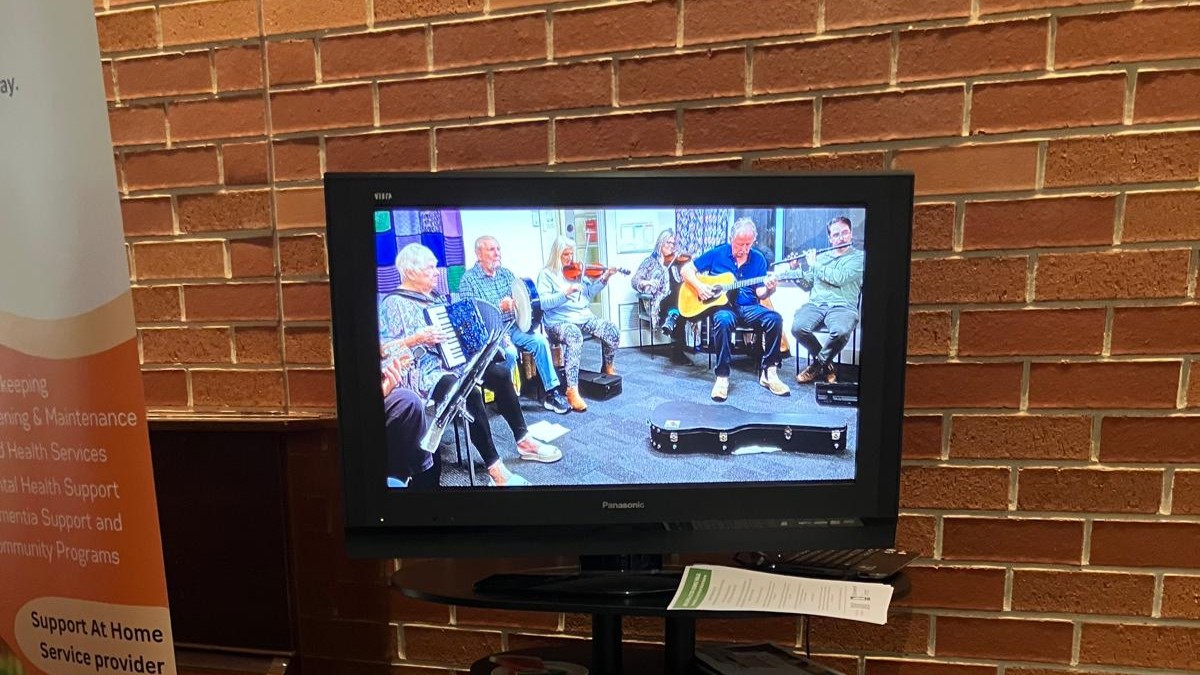
On the day, I plugged in the HP dm1 setup that I had already successfully prototyped at the Linux Repair Cafe, and it worked a treat:
The only problem was that the laptop’s screensaver would switch it off. So we used the following command to disable the screensaver:
xset s off -dpms
So there you have it: a 15-year-old laptop, an old TV rescued from the kerb, and a little bit of Linux were all that was needed to create a perfectly functional digital display.
Extending the useful life of old technology is a simple sustainability initiative: it keeps functioning equipment out of e-waste and avoids the environmental cost of manufacturing something new. Sometimes, the best technology is the technology you already have lying around. Or the technology you pick up at the kerb.